
Cox Modem Blinking Orange: What It Means and How to Fix It

Practical Tips for Safe and Efficient Oil Tank Maintenance
August 29, 2025
UN and EU Say No to Solar Geoengineering—Here’s Why
September 10, 2025
Is your Cox modem blinking orange and leaving you frustrated without internet? You’re not alone. A blinking orange light on your Cox modem is one of the most common issues Cox internet users encounter. But the good news? It’s usually fixable — often in minutes.
In this comprehensive guide, we’ll break down what the blinking orange light means, the potential causes behind it, and most importantly, how you can fix it yourself before contacting customer support. We’ll also address frequently asked questions, troubleshoot step-by-step, and help you avoid this issue in the future.
Whether you’re working from home, streaming your favorite show, or just trying to scroll social media, nothing is more annoying than losing your internet connection. Let’s fix that blinking orange light once and for all.
What Does a Blinking Orange Light on Your Cox Modem Mean?
A blinking orange light on your Cox modem generally indicates that the device is attempting to establish a connection with the Cox network but hasn’t been successful yet. This can happen for several reasons, ranging from a simple restart issue to signal interference, outages, or hardware malfunctions.
In most Cox modems or modem-router combos (also known as gateways), lights help diagnose connection statuses:
- Solid White or Blue Light – Connection is active and stable
- Flashing Orange or Amber Light – The modem is trying to sync with the network
- Solid Red Light – No connection or hardware failure
Understanding these signals is key to troubleshooting effectively.
Common Causes of a Cox Modem Blinking Orange
Here are the most common reasons you might see that blinking orange light:
-
Network Outage in Your Area
If Cox is experiencing an outage in your neighborhood, your modem won’t be able to establish a stable connection — hence the blinking orange.
-
Loose or Damaged Cables
A damaged coaxial cable or a loose Ethernet connection can interrupt the modem’s ability to communicate with the network.
-
Firmware Updates
Sometimes, your modem is blinking orange because it’s in the middle of a firmware update. During this time, internet access may be temporarily unavailable.
-
Signal Issues or Splitters
Using coaxial splitters to connect multiple devices can degrade the signal and prevent your modem from locking onto a stable connection.
-
Modem Activation Required
If you’re using a new Cox modem or switching devices, it might need to be activated or registered with Cox before it can access the network.
-
Overheating or Hardware Malfunction
Over time, overheating or internal component failure can disrupt performance, leading to blinking indicator lights.
How to Fix a Cox Modem Blinking Orange (Step-by-Step)
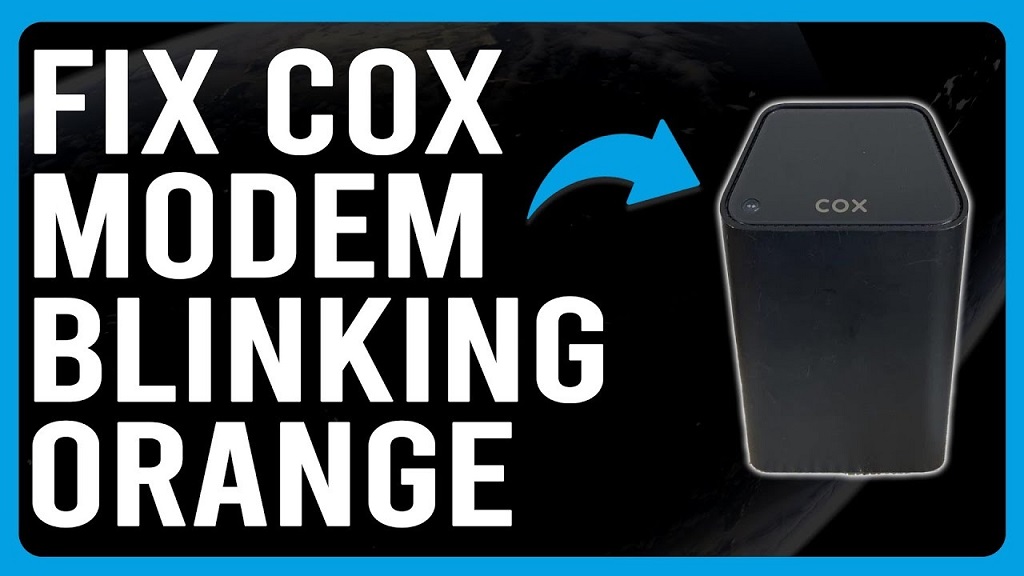
Before calling tech support, try these simple but effective troubleshooting steps.
✅ Step 1: Check for Service Outages
Go to the Cox Outage Map or use the Cox app to see if there’s a known service disruption in your area. If there is, you’ll have to wait until service is restored.
Pro Tip: You can also sign up for outage notifications via the Cox app.
✅ Step 2: Power Cycle the Modem
Sometimes, all your modem needs is a fresh start.
- Unplug the modem from the power outlet.
- Wait for at least 30 seconds.
- Plug it back in and wait for the lights to stabilize (can take up to 5 minutes).
If the light turns solid white or blue, your connection is back.
✅ Step 3: Inspect Cables and Connections
Check all cable connections:
- Coaxial cable (from wall to modem)
- Ethernet cable (from modem to router or PC)
- Power adapter
Ensure they’re tight and not damaged. If you see wear or corrosion, replace the cables.
✅ Step 4: Bypass Splitters
If your modem is connected through a coax splitter, try connecting it directly to the wall outlet. Splitters can weaken signal strength and cause syncing issues.
✅ Step 5: Activate or Re-Activate Your Modem
If you recently bought or replaced your modem:
- Visit www.cox.com/activate or call 1-888-556-1193.
- Follow the instructions to activate your device.
Make sure your modem is Cox-compatible. Not all third-party modems work with their network.
✅ Step 6: Reset the Modem to Factory Settings
If all else fails, try a factory reset:
- Locate the reset button (usually a small hole on the back).
- Use a paperclip to hold the button for 10 seconds.
- Wait for the modem to restart and attempt to reconnect.
Caution: This will remove any custom settings like Wi-Fi names or passwords.
✅ Step 7: Contact Cox Support
If the blinking orange light persists after trying all steps, it may be time to escalate.
- Use Cox Live Chat or call Cox Internet Support.
- Provide your modem’s model number, MAC address, and a description of your issue.
They can run diagnostics remotely and may dispatch a technician if needed.
Preventing the Blinking Orange Light Issue in the Future
To avoid repeating this issue, follow these best practices:
🔄 Keep Firmware Updated
Ensure your modem receives regular firmware updates. Most Cox-approved devices update automatically.
🌡️ Prevent Overheating
Keep your modem in a well-ventilated area and clean it periodically to avoid dust buildup.
🔌 Use Cox-Compatible Equipment
Using certified modems or gateways from Cox’s approved list ensures full compatibility and support.
🛠 Perform Regular Maintenance
Restart your modem once every couple of weeks to refresh your connection.
Read More Also: Top Sustainable Alternatives to Wood for Green Building
Frequently Asked Questions (FAQs)
❓ Why is my Cox modem blinking orange but I still have internet?
Sometimes the modem is blinking orange during a firmware update but the connection remains active. It should stabilize after a few minutes.
❓ Can a bad modem cause the blinking orange light?
Yes. Internal hardware failure or overheating in older modems can cause connectivity problems. If your modem is 3+ years old, consider replacing it.
❓ Should I replace my Cox modem?
If you’ve gone through all troubleshooting steps and the problem persists, it may be time for a modem upgrade. Look for DOCSIS 3.1 modems for better speed and stability.
❓ Is the blinking orange light different from blinking blue?
Yes. A blinking blue light usually means the modem is in WPS pairing mode. An orange blinking light is generally a sign of syncing or connection issues.
❓ Will resetting my modem delete my Wi-Fi password?
Yes. A factory reset reverts all settings to default. You’ll need to reconfigure your SSID and password afterward.
Read More Also: 5 Core Principles of a Sustainable Business
Final Thoughts: Don’t Let the Orange Light Disrupt Your Day
A Cox modem blinking orange isn’t the end of the world — but it can certainly feel like it when your internet goes down at the worst possible time. Thankfully, most of the time it’s a simple issue that can be resolved without professional help.
From checking cables and rebooting your modem to understanding network outages and modem compatibility, you now have a full troubleshooting toolkit at your disposal.


